The Keynote
I loved the keynote’s “You want a great opening scene?” opening, which ran through a series of genre-inspired hook-you-from-the-first-shot pretend movie openings. Apple started with a title card that said “The following was shot on iPhone”, but the whole keynote — including the fun fake-movie openings — was shot on iPhone 18 Pros. Apple started shooting its keynote movies using iPhone Pros in October 2023, with the “Scary Fast” Mac event. That first one was shot on the then-just-released iPhone 15 Pro, the first iPhone Pro generation to support the necessary pro video features to enable Apple-level production quality (e.g. ProRes recording and Apple Log encoding).1 For the next few years, Apple shot each of its keynotes using whatever the current iPhone Pro model was. But last year, with the September 2025 “Awe Dropping” event, they shot the keynote using the as-yet-unreleased iPhone 17 Pro itself — a bit of a risk given that it was running mid-summer iOS 26 beta software. They did the same this year, shooting the entire keynote, including the prelude fake movies, using iPhone 18 Pros. But, they couldn’t say that it was the 18 Pro on the title card because the 18 Pro wasn’t announced until later in the keynote.
There was at least one report from an ill-informed know-it-all who claimed, with odd certainty given how often he’s wrong, that Tim Cook would not appear in the keynote. But the last segment of the keynote’s cold opening gave us Cook, Tim Cook, framed in an obvious homage to the opening of 2012’s Skyfall:
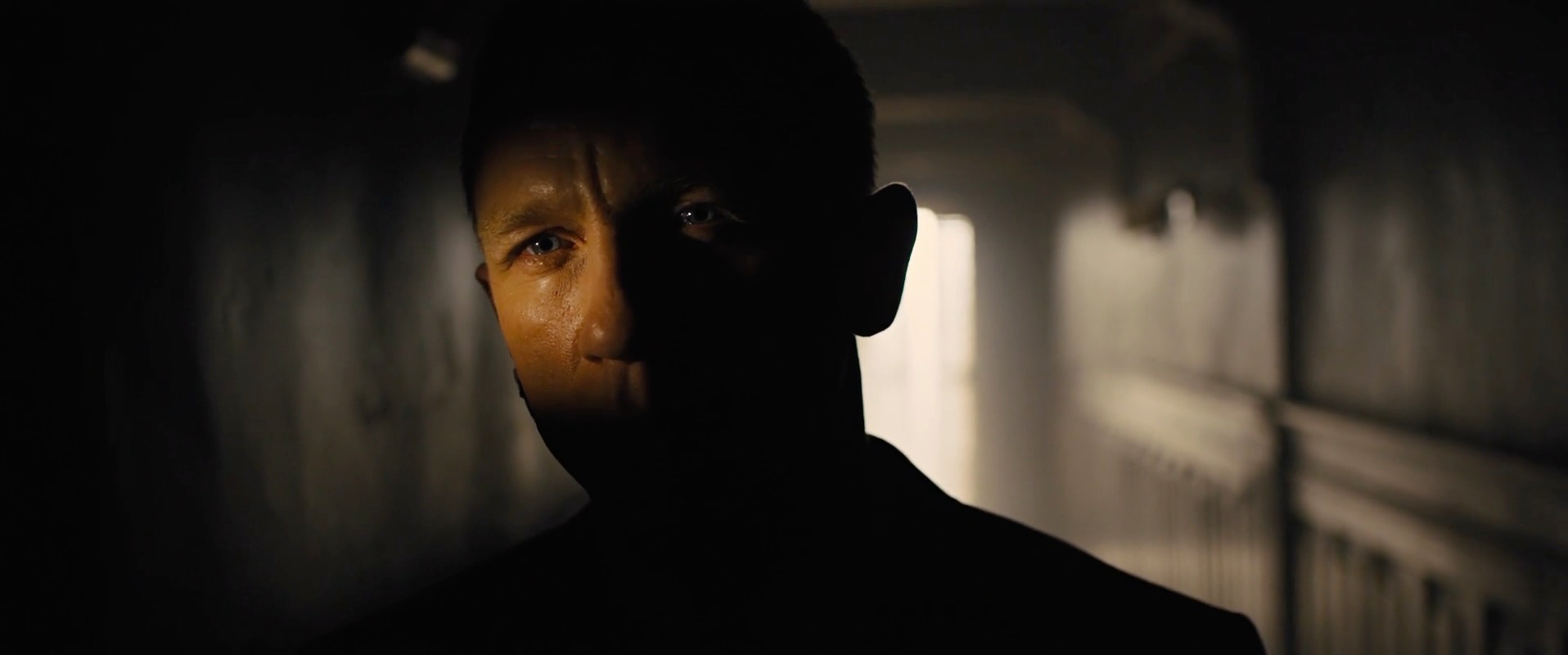
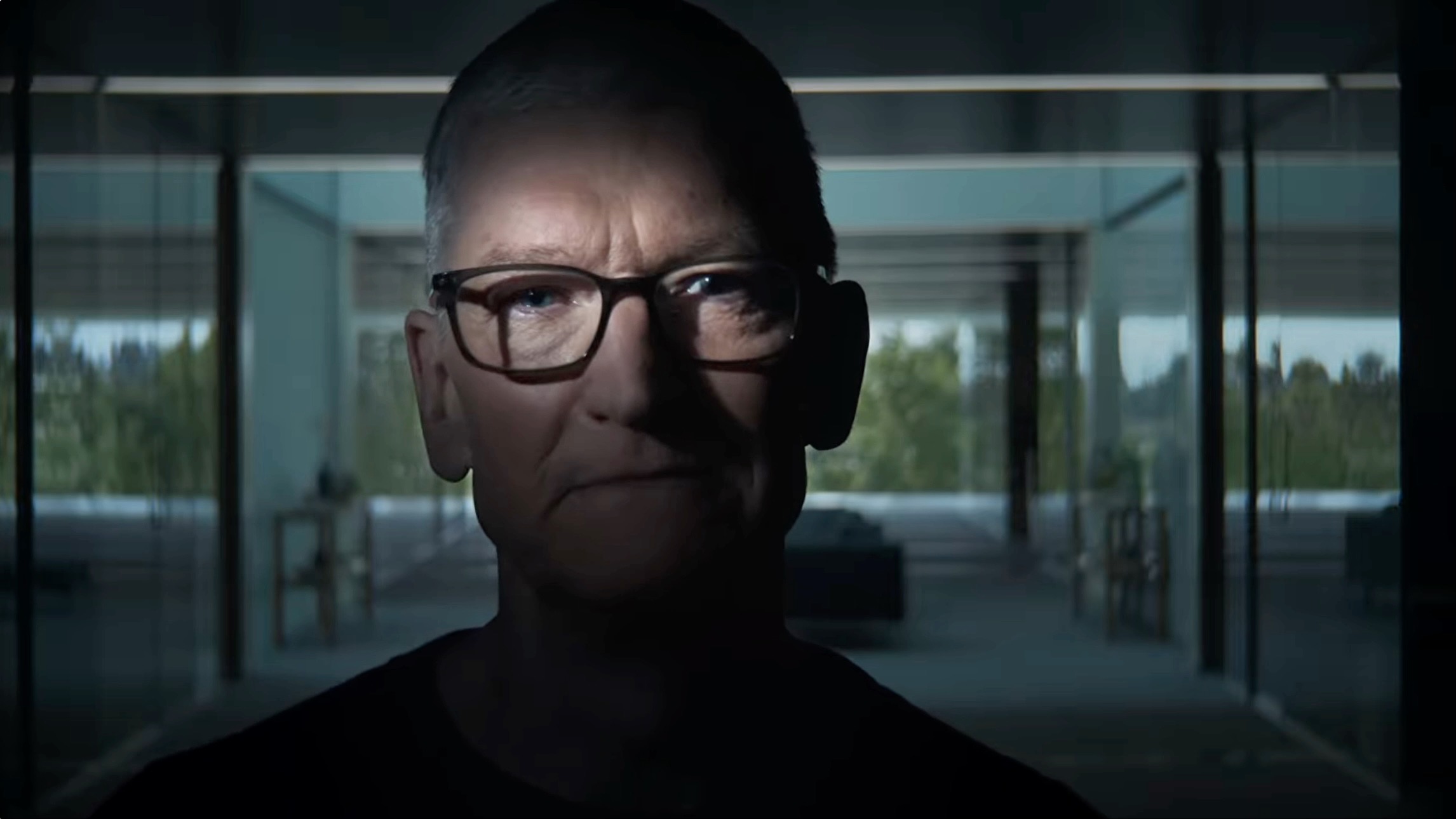
I’ve stolen those comparison frames from this splendid blog post by Vaziri, Todd Vaziri, in which he points out a few other Bond homages in this keynote — including using the new variable aperture on the 18 Pro’s main camera as a reference to the Bond title-sequence gun barrel. Fun stuff all around, and a perfect way to commemorate the Cook-to-Ternus passing of the torch.2 Also, the variety of visual styles in these mini movies really showed off the capabilities of the iPhone 18 Pro as a cinematic camera.
The little Cook / Bond homage that closes the opening segment starts with a voiceover from Cook himself (starting at 2m:07s):
Forget all that. Keep it classic. Open on an aerial shot, high
above the California coast. A car drives down the highway. Then it
disappears into a tunnel. Cut to an interior. Camera follows a
mysterious figure, before revealing our main character...
No no no no no. Not me. That’s your guy. That’s your opener.
It’s a perfect segue, and Cook’s line reading is sublime. Cook’s on-screen persona improved a lot in the 15 years he served as CEO and keynote emcee, but even at his best he always came across as a bit, well, stiff. Voicing this introduction of John Ternus, on the other hand, he sounds cool as hell — relaxed, certain, and comfortable. I think the chairman role suits him better than CEO did. He’s a natural born éminence grise. And if this was Cook’s last appearance in a keynote, he went out on top.
Ternus’s Turn
For those of us invited to Apple Park, Ternus actually took the stage in person at 9:58 am, for a brief in-person greeting and introduction. What I recall isn’t anything he said but how he was greeted, which was with tremendous enthusiasm. The annual iPhone events always have a unique charge to them. WWDC is a far bigger event attendee-count-wise, but the September iPhone event is sharper, higher pressure. The exclusivity heightens the stakes — Apple only invites as many people as fit in Steve Jobs Theater: 1,000. The new era begins energy was palpable, if subtle. In the morning meet-and-greet coffee-and-apple-tarts mingling in and outside the Steve Jobs Theater upstairs atrium, attendees were genuinely unsure what to expect. A few were genuinely wondering if Ternus would bring back live-on-stage keynotes. (The apple tarts were supposedly made using apples grown on campus, and were quite good.)
In person, Ternus wore a dark t-shirt and jacket. In the keynote video, a burgundy shirt that clearly served as a reference to burgundy as the color of the year. (It’s hard to imagine Ternus in a cosmic orange shirt if he’d taken the top job a year prior.)
I think Ternus came across fine as emcee. Not great, but fine. He’s comfortable but I think the role still feels like a new pair of shoes he hasn’t yet broken in. Ternus’s opening line in the video was “Hello, and welcome to Apple Park”. I think that’s what he said on stage too. They’re leaving “Good morning!” as Cook’s signature, as they should.
Before any product announcements, Ternus laid out his theory of an “intelligent personal hub” for the AI era, making the case that if one were to design such a device from the ground up, starting today, you’d wind up with something exactly like an iPhone — with you all the time, with a great display, ubiquitous networking, great cameras and mics, and long battery life. The cynical take would be that this is an “If all you have is a hammer, everything looks like a nail” guiding doctrine. Apple is not a leading AI model company, and is completely sitting out the capex data center rat race, so of course they’re going to argue that the most popular product they make — the iPhone — is the central device of the AI era. But, well, I think it’s true. You need devices to run AI. I wrote an entire column about this back in May — “AI Is Technology, Not a Product” — responding to Steven Levy’s argument that Ternus “needs to launch a killer AI product”.
Levy, in Wired, wrote:
By the end of this decade, it’s unlikely that people will swipe on
their phones to tap on Uber or Lyft. They will just tell their
always-on AI agent to get them home. Or that agent will have
already figured out where they need to go, and the car will be
waiting without the friction of a request. “There’s an app for
that,” may be replaced by “Let the agent do that.”
I wrote:
Actual products have to be real. Actual experiences have to rely
on actual products. How exactly in Levy’s end-of-this-decade
scenario will we tell our “always-on AI agent” to get us home?
What microphone is listening to the command? What speaker is
telling us the request was understood and acted upon? What screen
do we look at to see how far away the hailed car is? I’d bet a
pretty large sum of money that in 2030, when someone hails a
ride-share vehicle to take them home, the most common product
they’ll use to do that will be their phone. Whether they’re doing
it via a verbal command issued to an “always-on AI agent” or good
old tapping and swiping, it’ll be a phone.
Ternus’s “intelligent personal hub” doctrine seems very much in line with my retort to Levy’s not-entirely-thought-through fantasy. It also sounds an awful lot like a modern-day reimagining of a former Apple CEO’s “digital hub” strategy for the Mac. I highly recommend you take 8 minutes of your time, right now, and watch Steve Jobs’s introduction of the digital hub strategy from January 2001’s Macworld Expo. History doesn’t repeat but it does echo, and Ternus’s “intelligent personal hub” sure sounds exactly like Jobs’s “digital hub” echoing a quarter century later. If Ternus’s “intelligent personal hub” strategy works out like Jobs’s “digital hub” one did a quarter century ago, Apple’s going to be alright.
iPhone 18 Pro
Heretofore, to my recollection, the iPhone Pro always came last in the September keynotes (including the years when the higher-tier iPhones didn’t yet have the word “Pro” in their names, like the XS in 2018 and X in 2017). This year the 18 Pro came first. This worked both as the immediate product announcement after Ternus’s expression of Apple’s intelligent personal hub strategy, and to clear the final act of the keynote for the much-anticipated Duo. (It’s somewhat telling that the Air didn’t get that cleanup spot in the announcement batting order a year ago.3)
Thoughts on the colors, based on my hands-on experience:
- Black: Truly deep black. Reminds me a lot of the flat black iPhone 7 (not to be confused with the jet black iPhone 7 — what a year for black that was).
- Silver: Looks good. Not sure how it’s different from last year’s silver, because I had no way to compare side-by-side.
- Glacier: Nice. I think this will be popular. It’s definitely blue, not silver / gray (which you’d hope would be true in general, but especially alongside an explicit silver colorway).
- Burgundy: Last year the iPhone 17 Pro only came in three colors: silver, deep blue, and cosmic orange. I sort of thought of the strategy as “light”, “dark”, and “special”. But this year there are two specials, glacier and burgundy, but burgundy seems more special. Last year cosmic orange was clearly the color of the year. It was the most-used by far in Apple’s advertising, and I suspect it was the most popular sales-wise. Burgundy is that color this year. I don’t like it nearly as much, and I don’t think it will prove to be as popular or as iconic as cosmic orange. The cosmic orange iPhone 17 Pro seems set to go down as one of the most iconic iPhone colors ever made. I don’t think that will be true for the burgundy iPhone 18 Pro.
Pricing:
|
256 GB |
512 GB |
1 TB |
2 TB |
| 18 Pro |
$1,200 |
$1,400 |
$1,800 |
$2,400 |
| 18 Pro Max |
$1,300 |
$1,500 |
$1,900 |
$2,500 |
Compared to the 17 Pro one year ago:4
|
256 GB |
512 GB |
1 TB |
2 TB |
| 17 Pro |
$1,100 |
$1,300 |
$1,500 |
— |
| 17 Pro Max |
$1,200 |
$1,400 |
$1,600 |
$2,000 |
So:
- Max remains $100 extra.
- 2 TB is now available on the regular-size Pro; last year it was exclusive to the Max.
- 256 and 512 GB storage options are only $100 more expensive this year.
- 1 TB costs $300 more this year.
- 2 TB costs $500 more.
256 and 512 GB are by far the most popular sizes (and I think 256 in particular far outsells 512 — the base size truly is large enough for the majority of users), so for most 18 Pro buyers, the RAM/SSD shortage is only resulting in a $100 year-over-year price increase. The higher storage tier prices aren’t too bad, all things considered.
It’s worth pointing out here that coincident with the announcement of the iPhones 18 Pro and Duo on Wednesday, Apple raised the prices of all existing iPhones in its lineup by the same amounts, depending on storage — $100 for models with 128, 256, or 512 GB storage; and $300 for the iPhone Air with 1 TB.
Technically, the iPhone 18 Pro mostly offers three new things compared to the 17 Pro: the A20 Pro SoC (faster cores, two Neural Engines instead of one, and 50% faster memory bandwidth); variable aperture on the 1× main camera, ranging from ƒ1.48 to ƒ4.0; and an all-new thermal management system, including a much larger vapor chamber. The A20 Pro means peak performance is faster; the new thermal system allows it to maintain peak performance longer.
In a curious decision, the regular-sized 18 Pro models ship with Apple’s C2 cellular modem worldwide, but the 18 Pro Max models use a Qualcomm modem in the U.S., and the C2 everywhere else. Apple’s C-series modems are power efficiency marvels, with (in my experience) just as good reception and speed. I’d be just ever so slightly bummed about this if I were a Pro Max fan in the US.
That said, both the 18 Pro and Pro Max models continue to get slightly longer battery life in the US models than worldwide models, because the US models are eSIM-only, but most (all?) models elsewhere still have a physical SIM tray. The US models use the space occupied by the SIM tray in international models to make the batteries physically larger. Going by Apple’s new “typical use” tech spec, the US Pro / Pro Max models are rated for 24 / 30 hours respectively; the international models with a physical SIM tray for 23 / 29. Not a big difference, but not nothing.
In line with my belief that modern iPhones are best thought of as cameras with phones, not phones with cameras, most of the 18 Pro’s year-over-year improvements (and the features that set the Pro models apart from all other iPhones, including the Duo) are related to photography — both still and video:
Photographic Styles is now up to version 3, adding new controls for “texture”, film-look, and grain. One stated goal of this is to enable shooting images with a less processed look; on the other end of the aesthetic spectrum, though, I think it will also enable shooting with a more processed look, with the addition of “glow” and “soft skin” as texture alternatives alongside “film” (which is the only texture with the new grain option). The other, and default, texture option is “standard”, which effectively means no texture processing.
Apple Reference Image is a new shooting mode (main 1× camera only, because it’s tied to new features on that sensor) that performs pixel-by-pixel signing of the sensor data and embeds that signature in the file. After capture, reference images can be sent to Private Cloud Compute servers for verification and comparison to the original image sensor data. To capture images in Apple Reference format, you must shoot them in that mode, and you must enable that shooting mode first. The embedded sensor data doesn’t make files that much larger, but the sensor data stored in the file does uniquely identify your iPhone. When you “develop” a reference image — something the user must choose to do (not something that happens automatically each time you capture one) — the raw sensor data, sensor identifier, and time window when the image was captured are sent to Private Cloud Compute. When you share a photo captured in Apple Reference Image format, the sensor identifier is not included in the developed image, and you have the option to share a plain version without the embedded verification data. Apple Reference Image capture is not available in the EU or China, the world’s two largest bastions of freedom, but according to an Apple footnote, users in the EU “with iOS 27, iPadOS 27, and macOS 27 will be able to develop and view reference images.”
Cinematic Mode can now be applied after shooting a regular video; on previous iPhones the Cinematic Mode effect was only available via a specific shooting mode.
To the layman’s eye, though, the 18 Pro just looks like it comes in new colors. That’s not a complaint, just a fact. Oh, but the Face ID infrared camera is now underneath pixels on the display, so the Dynamic Island cutout is now smaller. So the part of the Dynamic Island that is always black is smaller, but because there are now more display pixels next to it, the 18 Pro Dynamic Island can now show three active Live Activities, up from two. Apple is getting closer and closer each year to achieving a no-notch / no-cutout display.
AirPods 5
Just like with AirPods 4, Apple continues to make two different products under the same name. For $130, the cheaper AirPods 5 now have active noise cancellation (previously reserved for the higher-priced tier of AirPods 4), including Transparency and Adaptive modes. For $150, you get AirPods 5 with a wireless charging case (using MagSafe, Qi, or Apple Watch pucks), volume control by swiping up / down on the earbud stems, and longer battery life. It’s a much better product for just $20 extra, but it must have worked out well for Apple with a similar split with AirPods 4. I honestly can’t see why anyone should buy the $130 models, but someone must be buying them.
Apple provided me with a pair (the $150 model) to review, with no embargo. I wore them on the cross-country plane ride home, and compared them to my own AirPods Pro 3 for noise cancellation. It’s hard to make a direct comparison of the overall acoustic quality, but solely in terms of reducing the noise of the airplane cabin while trying to work, I found the new AirPods 5 with full noise cancellation to be roughly equivalent to the AirPods Pro 3 in Adaptive mode. That’s pretty good, and makes the ambient noise level in an airplane much more pleasant. But the full noise cancellation mode of the AirPods Pro 3 delivers an entire step change in noise reduction that the open-ear AirPods 5 cannot match.
I feel bad for people who despise airplane cabin noise but whose ears aren’t comfortable with closed-ear fit earbuds like AirPods Pro. But the noise reduction quality of the AirPods 5 seems impossibly good given their open-ear design. I don’t find AirPods Pro uncomfortable, but I do find regular AirPods more comfortable, especially for long stretches like hours-long flights. I’ll take the small trade-off in comfort for the big improvement in audio quality and noise cancellation with the AirPods Pro, though. With AirPods Pro you can truly forget you’re on an airplane at all if you’re watching a movie with Vision Pro or even on a MacBook or iPad display in a dark cabin.5
Apple Watch Series 12 and Ultra 4
The big new health thing is a next-generation heart sensor that takes readings every 5 seconds — 60× as frequent as with Series 11 / Ultra 3 a year ago. Apple commissioned a study comparing their new watches against a slew of competing heart rate monitoring devices, and released a paper with the results, claiming that Apple Watch was the most accurate. That’s an Apple-commissioned, Apple-released study, so take it with a grain of salt, but it looks solid to me and I’m unaware of any other studies showing otherwise. (And if I’m reading the results correctly, rings like Oura’s are crummy heart rate monitors.)
Ultra 4 looks the same as Ultras 1–3 (although Ultra 1 only came in natural titanium, not black). Series 12 comes in some tweaked colors in matte aluminum ($400) and polished titanium ($700), and for the first time since Series 5 seven years ago, brings back ceramic, in two colors: pearl white and night blue ($900). Those prices are for the smaller 42mm size; add $50 to each of them for the larger 46mm size. As has been true for every Series model to date, only the higher-priced materials come with sapphire crystal displays; the entry-model aluminum models still use Ion-X glass. But now those glass displays offer Ceramic Shield 2, which treatment has proven to be a tremendous boon to scratch resistance on iPhones.
The S11 chip powering the new watches enables two very interesting, and instantly controversial Apple Intelligence features:
Live Rewind is a feature that allows you to double-click the digital crown to bring up a transcript of the last 15 seconds of conversation around you. Apple claims, somewhat preposterously, that audio isn’t being continuously recorded, when it clearly is. What they mean is that audio is only being cached for 15 seconds, continuously. There is no way to set Live Rewind to transcribe more (or less, for that matter) than the last 15 seconds of audio.
Siri Recap is a feature that produces Apple Intelligence-generated summaries of your conversations throughout the day, while the feature is enabled on your Apple Watch. These are not transcripts, just bullet-point style summaries. You can set Siri Recap to only be enabled during certain times (like work hours), and you can toggle it on and off in Control Center at any time. But when it’s on, that’s the only control you have over it. You can’t manually start / stop conversations to record, like you do when recording something with Voice Memos. You just turn Siri Recap on, and Siri generates summaries when it thinks you’ve had a conversation worth summarizing. It’s entirely and exclusively automatic, when the mode is enabled.
Neither of these features are available in WatchOS 27.0. They’re both described as coming “in beta later this year”. I asked Apple reps if that meant 27.1, and they wouldn’t answer other than to repeat “later this year”, but I thought I saw a smile. Both features are English-only for now.
Some people are objecting to the very existence of these features as privacy intrusive. I think they’re pretty reasonably thought out. There are surveillance cameras all over the place now. I was walking home from dinner here in Philadelphia a few weeks ago with a friend visiting from out of town, talking about this, and he stopped midway between the restaurant and my house and asked me to count how many cameras we were on at that spot. I think we counted seven or eight. Who knows how many we missed? I’m not saying that’s good or bad, it’s just the world today. So too it’s soon going to be with personal devices recording audio. This is inevitable. I’m glad to see Apple ship features like this early, with pretty limited scope, to provide good examples before other companies ship devices that record and save audio continuously throughout the day. I think it’s better for Apple to lead with privacy-minded versions of ambient transcripts and AI-generated conversation summaries than to follow after other products have hit the market with all-day recordings and whole-life transcripts.
Think back to Apple’s announcement of AirTags. A lot of people had a perfectly reasonable “Hey I don’t know if it’s a good idea for a product like this to even exist” initial reaction. But having Apple lead the way actually proved good. I suspect Live Rewind and Siri Recap will turn out like that.
It’s also interesting to think about why these two features are only on Apple Watch, not iPhone. I think it’s because once an Apple Watch is on your wrist and unlocked, it remains a “trusted device” until you take the watch off. An iPhone is only a trusted device while it’s unlocked. It’s locked, and thus untrusted, while it’s in your pocket or bag, or even just sitting on a desk. I leave my iPhone unattended in our kitchen all the time. I’m often not in the room for conversations that take place in the kitchen while my iPhone is there, sitting on the counter. I shouldn’t get summaries of those conversations. And, thinking more nefariously, I shouldn’t be able to hide my iPhone on or near someone’s desk, or in a conference room, or in a car, or anywhere else, to get Siri Recap summaries of conversations where I’m not present. Making this an Apple Watch exclusive feature avoids that. Thus, I think Apple Watch can be trusted to “listen” ambiently, all the time while it’s unlocked on the wearer’s wrist, in ways that even an iPhone can’t.
iPhone Duo
Ternus broke out the hallowed “But actually, there is one more thing...” to introduce the Duo, which line — to circle back to the keynote’s intro — is for Apple CEOs what “Vodka martini, shaken not stirred” is for actors playing James Bond.6
Pre-orders for the Duo don’t start until October 16, and it doesn’t ship until October 23. In my experience, Apple never seeds review units for any product until a few days before pre-orders open, so we’re not going to hear or see anything more about the Duo until those review embargoes lift on October 20 or 21, I bet.
Duo is available in only two colors: star white (polished silver) and night sky (a deep blue-black). As predicted, the Duo is expensive. I’ll put it alongside the 18 Pro models for comparison:
|
256 GB |
512 GB |
1 TB |
2 TB |
| 18 Pro |
$1,200 |
$1,400 |
$1,800 |
$2,400 |
| 18 Pro Max |
$1,300 |
$1,500 |
$1,900 |
$2,500 |
| Duo |
$2,000 |
$2,200 |
$2,600 |
$3,200 |
At every storage tier, it’s $800 more than an 18 Pro and $700 more than an 18 Pro Max.
Key facts:
It has no Face ID sensor, either open or closed. The only authentication is an iPad Air-style Touch ID side button.
It has a Camera Control button, but does not have an Action button.
The interior display has a matte nano-texture display. It looks great and apparently this is a key element of Apple’s efforts to make the crease as unnoticeable as possible. By next year I expect all competing foldables to have matte interior displays and 1.4 : 1 aspect ratio displays.
It is very satisfying to open and close.
The outer glossy screen has a “Center Stage” 12 megapixel front-facing camera, that seems very similar to the 18 megapixel Center Stage front cameras in the iPhone 17 generation phones. Year-ago tech but still high quality. There’s a circular hole punch in the corner of the display for this camera.
The inner matte screen has an under-the-display “FaceTime” camera for which Apple hasn’t even given a megapixel count. Clearly this is a lesser camera — the question is how much lesser. The idea presumably is that this camera is solely for use in Zoom or FaceTime apps, where you might want to use the bigger inner display to view the meeting, and don’t care as much about your own image quality. But there’s no reason ever to capture a self portrait with the camera on the larger inner display. If the Duo is opened, and you care about image quality for self portraits, you can shoot using the main camera and use the small display to frame yourself, turning the large display around to the back. When not using the inner FaceTime camera, there is no visible cutout showing where it goes. If you look closely at the display however, you can see where it is. Under-display cameras aren’t magic.
The regular cameras are a 1× / 2× main, and a 0.5× ultra wide. I suspect the main 1× camera is very similar optically to that of the iPhone Air, but the Duo has A20 Pro features like Photographic Styles 3, although it lacks Pro Controls, Apple Log, genlock, and other pro camera features. (The Air only has last year’s Photographic Styles 2.)
The initial introduction of the Duo was handled by two keynote newcomers: industrial design VP Molly Anderson, and human interface VP Steve Lemay. A hardware / software design duo (ahem), if you will. What made it worth having Anderson and Lemay present together is that the iPhone Duo exemplifies Apple’s integrated approach to product design. Are they a hardware company that writes their own software or a software company that makes their own hardware? The answer is yes.7 The defining aspect of the Duo isn’t that it folds open and closed — we’ve seen almost a decade of Android phones that do that — but its aspect ratio, roughly 1.4 : 1. Because that’s effectively the square root of 2, doubling the outer display’s shorter dimension when you unfold it produces an inner display with roughly the same aspect ratio. That’s elegant and satisfying conceptually. And I think in practice it will feel right, too.
Heretofore the iPhone has only had three display aspect ratios:
The original iPhone (2007) display was precisely 3 : 2 (480&NoBreak &NoBreak×&NoBreak &NoBreak320 pixels, and let’s call it 1.5 : 1 for comparison’s sake to the following ratios), and this remained true through the iPhone 4 and 4S (960&NoBreak &NoBreak×&NoBreak &NoBreak640 pixels, 2× retina).
Then the iPhone 5 (2012) display size went from 3.5 inches to 4 inches, but added all the extra pixels on the long dimension. Held vertically, it got taller, but not at all wider, changing the aspect ratio to 16 : 9 (roughly 1.77 : 1). This 16 : 9 aspect ratio held for all of the 5, 6, 7, and 8 generation iPhones, including the Plus models.
The iPhone X (2017) introduced the “all-screen” era. The actual device hardware didn’t change size or aspect ratio by much, but eliminating the chin (with Home button) and forehead and filling those areas with the screen, the display aspect ratio went to roughly 2.17 : 1, and every new model since then, including the new iPhone 18 Pro and Pro Max, has maintained that aspect ratio.8
Thus, over 20 years, iPhone displays (and thus all phones, since all the other phones mostly just copy iPhones) have only gotten more elongated: from 1.5 : 1 to 1.77 : 1 to 2.17 : 1. Now, though, the iPhone Duo goes squatter than the original iPhone for the first time, to 1.4 : 1 on both the outer and inner displays.9 That’s a noticeable change from the original iPhone, but it’s a downright striking change from every iPhone released in the last 10 years.
This aspect ratio is so different that it demands a different UI layout for the Duo to have any chance at being a good experience. That’s exactly what Apple has done, and what Steve Lemay was there in the keynote to unveil. A lot of UI chrome that previously was at the top or bottom of the display is now on the right — the dock on the home screen, the toolbars in apps, etc. And these elements are always on the right. You can’t turn the Duo upside down to move them to the left, nor is there an accessibility setting to move them to the left. This layout puts these controls on the right not because 90 percent of people are right-handed and Apple thinks lefties can get bent, but, I think (and so I’ve been told in conversations with Cupertinoites), because that’s the nature of a book-like shape. The arrow keys on keyboards always fall on the right, publishers don’t print left-handed books, and carmakers don’t make left-handed steering wheels. The right-side bias in the Duo iOS layout is like that.
I’ve only spent a few minutes, in total, playing with the Duo, so I really can’t say whether it succeeds or not. But I will say that it’s weird. Not saying it’s weird good or weird bad — just weird different. In some ways iOS on the Duo feels more different from iOS on all other post-iPhone-X phones than iOS on the original iPad felt from iOS on the iPhones of that time. The original iPad just felt like a much bigger iPhone. The Duo feels like a different layout entirely, in every single app that I had time to poke around with.
Is the Duo good? I do not know. Is it different? Very much.
Here’s the thing. If you take a 2 : 1 or even 2.2 : 1 aspect ratio phone display and turn that into a book-like foldable, the inner screen comes out square — or so close to square that we might as well just call it square. Nobody makes any device of any sort that just has a square display. Square is a terrible aspect ratio for a phone or a tablet or a laptop or a desktop display. The only square displays on the market are the inner displays for Android foldables from the last decade. Square being a shitty aspect ratio is half the reason almost no one has bought those things. The other half of the reason is that no developers truly adapted software to take advantage of the double-area inner displays. Google didn’t do it, Samsung didn’t do it, and since neither of them bothered to do it, of course third-party developers didn’t do it either. Nothing adapts to the inner display on Android foldables — it just expands to fill the space.
Apple’s insight to go with 1.4 : 1 on the outside and thus also 1.4 : 1 on the inside gives the Duo a chance. Maybe this will be a huge hit. But maybe not? There are no 5-inch phone displays with aspect ratios anywhere near as squat as the Duo’s. That’s a tablet aspect ratio. The current A17 Pro iPad Mini has a 2266&NoBreak &NoBreak×&NoBreak &NoBreak1488 pixel display: roughly 1.5 : 1. The 11-inch iPad Air is 1.4 : 1 and the 13-inch Air is 1.33 : 1. So I think the Duo’s inner display is going to feel just right.
But that outer display? I don’t know. Even in the best case, it’s going to be no better than a tolerable compromise. If it were actually a good idea there would be non-folding phones with 1.4 : 1-ish squat displays, and there aren’t any such phones. And even if the Duo proves to be a hit, I don’t think there will be. If you only have one display you don’t want it to be the size and shape of the Duo’s outer display. So the questions are: How tolerable has Apple’s UI redesign made it? And how will Duo users split their time between using it closed vs. using it open? Someone who spends more of their time using it open might absolutely love it with a “you’ll take it away only from my cold dead hands” fervor. Someone who winds up mostly using the outer display because so many of their iPhone interactions are quick take it out → use it for a bit to check something, jot something down, or snap a quick photo → put it back in pocket / bag situations, might wind up regretting it.
Given the design brief of creating a book-shaped foldable phone, I feel quite certain already that Apple has nailed it with the Duo. But having only seen the keynote spiel and poked around with one in hand for a few minutes Wednesday afternoon, I think it remains an open question whether a book-shaped foldable phone is a good idea in the first place. Folks from Apple who have actually spent time carrying the Duo seem genuinely enthused. I remain highly skeptical about its appeal for me personally, and somewhat skeptical about its appeal broadly. That’s OK if it’s not suited for me, but is suited for many (but not most) people. No one in the keynote described the iPhone Duo as the future of iPhone, like they did when introducing the iPhone X in 2017. I just wonder if the fundamental idea appeals to all that many people at all. We’ll find out starting in late October.
Regarding some specific Duo details:
The lack of Face ID is a serious sad-trombone bummer, and in my opinion could sink the first-generation model. Side-button Touch ID is OK, but OK is not good, and even good is not insanely great. Face ID is insanely great. For whatever reason, the only iPads with Face ID are the iPad Pro models. Every time I review an iPad Air or iPad Mini, my biggest gripe is the lack of Face ID. I complained about it reviewing the iPad Air in 2022 and the iPad Mini in 2021, and in the five years since then my annoyance has only grown. With Face ID, so long as you’re looking at the screen as you unlock the device, it’s like not having it locked at all. It just unlocks, seemingly automatically. With Touch ID you must think about putting one of your registered fingers on the button every single time you unlock it. It never ever feels automatic. I feel quite certain Apple tried to fit a Face ID sensor on the outer Duo display and could not make the engineering work.
I’m much more concerned about convenience than security, but Face ID is 20× more secure than Touch ID. That’s according to Apple’s own Apple Platform Security whitepaper, updated just last month, which states:
The probability that a random person in the population could
unlock a user’s iPad, iPhone, or Apple Vision Pro is less than 1
in 1 million with Optic ID or Face ID — including when Face ID
with a mask is turned on. For a user’s iPad, iPhone, Mac models
with Touch ID, and those paired with a Magic Keyboard with Touch
ID, it’s less than 1 in 50,000. This probability increases with
multiple enrolled fingerprints (up to 1 in 10,000 with five
fingerprints) or appearances for Face ID (up to 1 in 500,000
with two appearances).
As a sign of how inconvenient the lack of Face ID is, Apple is promoting the fact that the iPhone Duo can be unlocked by your Apple Watch, like a Mac. No other iPhone needs such a crutch.10 Based on my experience with Touch ID iPads, wearing an Apple Watch all the time to unlock the Duo will feel essential. I don’t wear an Apple Watch all the time, and don’t want to start wearing an Apple Watch all the time, so I suspect this alone will keep me from switching to an iPhone Duo personally. On the other hand, for people who do wear an Apple Watch all the time and are happy to do so, the Duo’s lack of Face ID might prove to be only an occasional inconvenience rather than a constant annoyance.11
Contrary to some speculation, the Duo does support MagSafe. (Samsung’s latest, the Galaxy Z Fold8 and Fold8 Ultra, support inductive Qi charging but don’t have magnets, so you need to use a case or something to get chargers to snap into place.)
Closed, the Duo has — per Molly Anderson’s dulcet keynote description — “a distinctive asymmetric shape, with two rounded corners, that invites you to open it.” Expect this to be copied by every other foldable phone in 2027, and then for Android dorks to argue that it’s a totally obvious design. (Same for the matte interior display.)
Apple rates the Duo as IP68 for dust and water resistance, with exactly the same description as the iPhones 18 Pro (and all other iPhone models currently in the lineup): “Rated IP68 (maximum depth of 6 meters up to 30 minutes) under IEC standard 60529”. Samsung’s new Z Fold8 is only IP48. With these IEC ratings the second numeral is for water. The first numeral is for “solid foreign agents” (read: dirt and dust). iPhone Duo’s IP6x rating means “dust-tight”. The Z Fold8’s IP4x rating isn’t even “dust-protected” (that would be IP5x) but instead only protection against particles 1mm or larger. 1mm is pretty big for a piece of grit. That doesn’t mean it’s susceptible to ingress from every particle smaller than 1mm, but it’s not good. Pocket lint is a real thing and people put their phones in their pockets.
I’m Trying So Hard Not to Be Insufferable About Predicting the ‘Duo’ Name That I’ve Put This Entire Section 6,500 Words Deep Into the Column
Yours truly, back on April 14:
I have no inside knowledge about what Apple plans to name this
device, but I’ll eat my proverbial hat if they name it “iPhone
Fold”. That name is so dumb it’s what Samsung calls their
foldables. You don’t name a device for what it does, you name it
for what it connotes. A good name conveys feeling, not just
function. “iPhone Ultra” or “iPhone Max” would both work, and
Ultra sounds more luxe. So while unsurprising, that’s probably
the best bet, even without the reliable word of Mr. Digital Chat
Station.
But if you want my take on a wildcard name, one with some
history, how about “iPhone Duo”?
My thinking re: “Duo” seemingly jibed with that of Apple’s crack marketing team:
- It’s two devices in one.
- The early 1990s PowerBook Duo (and corresponding Duo Dock) were extraordinary Macs that were ahead of their time.
- It’s not ultra, if we take ultra to mean “better than what’s less than ultra in every way”. The iPhone Duo is different — quite different — from the iPhones Pro but, to name one conspicuous example, the iPhones Pro have better camera systems. (The Duo is ultra-priced, but one can also say it’s double-priced.)
- Duo looks and sounds so good alongside Neo.
When I suggested “Duo” in April and again the day before the event, the number one objection was that Microsoft had used the name “Duo” for one of its many forgettable Surface products. The half dozen or so readers who argued thus might be the only people alive who remember this product. No one cares. Microsoft also had a Surface Neo, and no one cares about that one either. Even if Apple hadn’t offered a line of (successful, memorable) PowerBook Duos from 30 years ago, it wouldn’t matter that Microsoft had used “Duo” in 2020. For chrissakes Cisco had the rights to the name “iPhone” in 2007 and had been making products with the name since 1998.
I love the name Duo for this iPhone. It just feels right. And, just five days in, I already find myself saying and writing just “Duo”, without “iPhone”, when referring to it.
Miscellaneous
Too many cooks spoil the stew. It was very fun and a little touching to have the Cook hand things off to Ternus at the start, but I think there were too many presenters in the keynote. Duo was effectively introduced three or four separate times. First by the Anderson / Lemay (I’m going to pun it again) duo, then Joz, then Craig Federighi (covering much of the same software ground Lemay did), then Johny Srouji (covering much of the same ground Anderson did). Maybe the thinking was that everyone wanted a part in Ternus’s debut keynote. Maybe this is just the way of the future — many small segments, rather than one continuous on-stage live monologue. It didn’t make the keynote run overly long (running time was just 1h:17m), so maybe I’m all wet here. But I think what I wanted was to see Ternus do more of the explaining — not just the what but the why.
Apple’s YouTube video of the entire keynote has over 49 million views, and that doesn’t count the views from Apple’s own hosted version, presented on Apple.com and Apple TV. Apple has 12 other shorter keynote-related videos on YouTube, including “Introducing the new iPhone 18 Pro” with 18 million views, and “Introducing the new iPhone Duo” with 28 million views. For comparison, this year’s WWDC keynote on YouTube has 8.9 million views. 9 million views is a hell of a view count for the introduction of operating systems, but the iPhone remains king — not just for Apple, but the industry. It remains the Super Bowl of the annual tech calendar.
For an even better comparison, in the full version of that 2001 Macworld Expo keynote that I suggested you watch earlier in this column — the one where Steve Jobs introduced the Mac-as-digital-hub strategy — when Jobs takes the stage, he’s beaming with pride when he says there are “tens of thousands” of people watching the stream live. Both streaming and Apple have come a long way in 25 years.
 Log in